Nano2Image features for editing your photos with AI
Upload an image, tell Nano2Image what to change, and download the result. Use the AI image editor for custom edits, or pick a tool for common jobs like background changes, transparent PNGs, and line drawings.
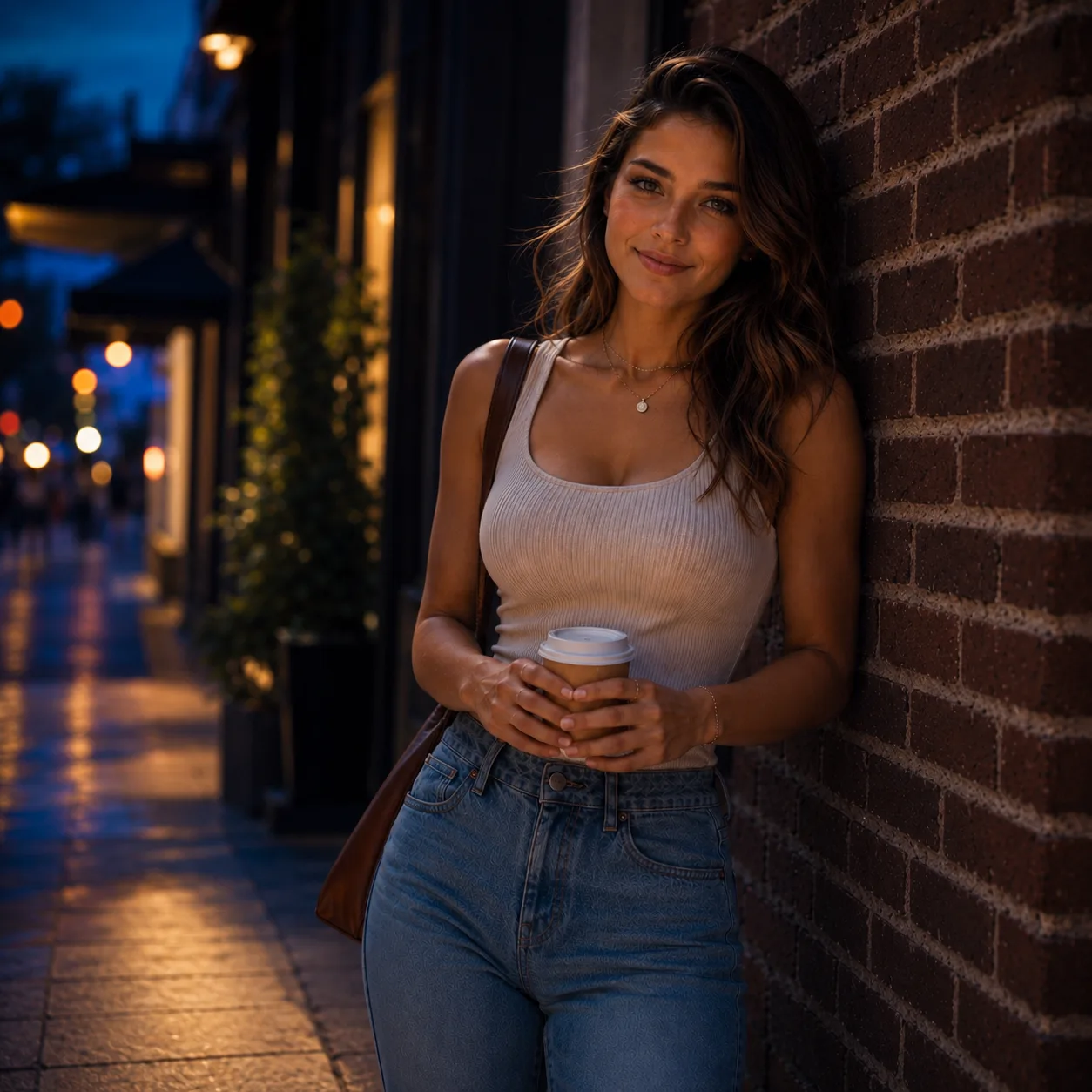
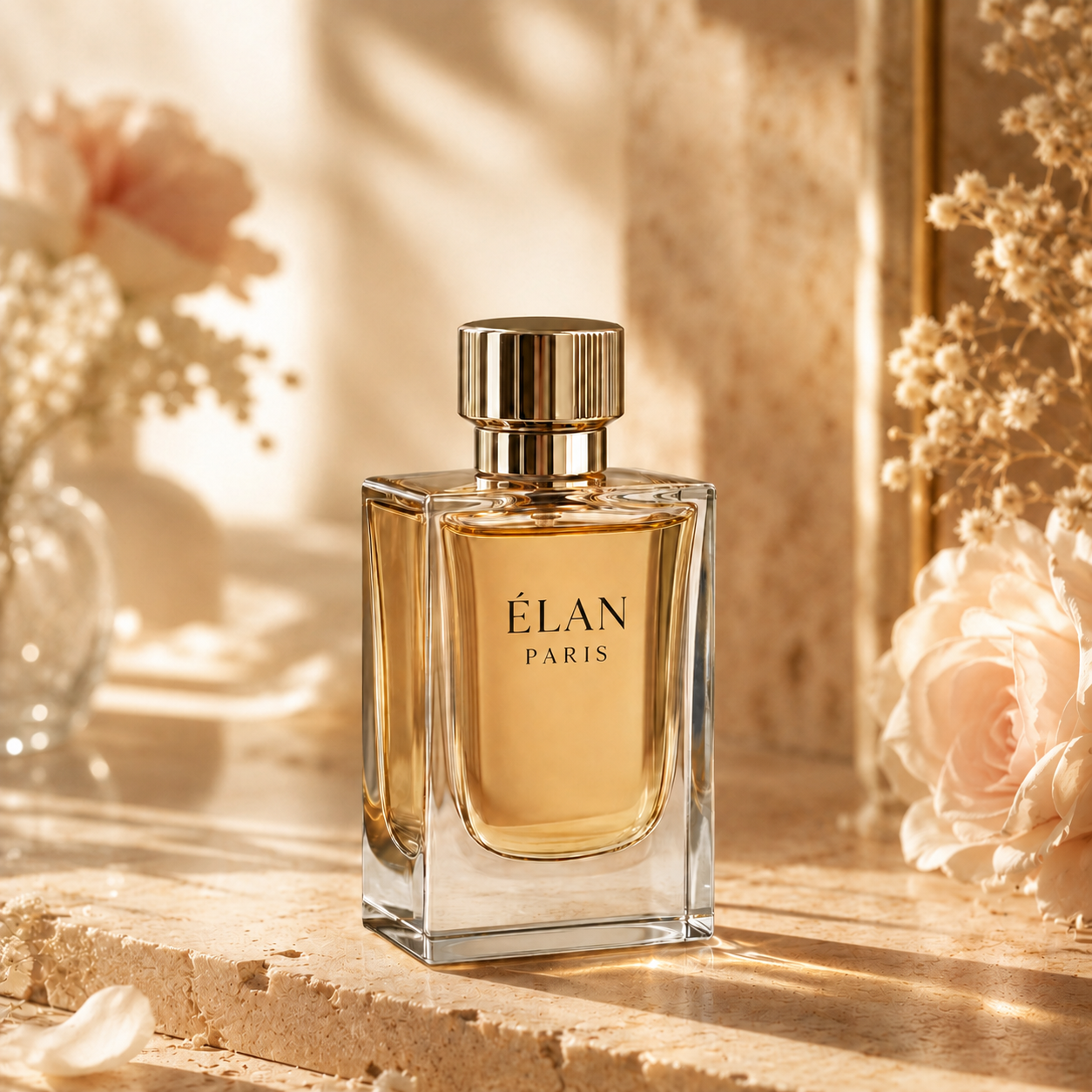
From original photo to finished image
Most edits start with a file you already have. Upload it, say what should change, keep the important details, and download the new image.
Upload your image
Start with a portrait, product photo, room, logo, sketch, or any image you want to change.
Choose what you want to do
Open the main editor for a custom change, or pick a tool for backgrounds, transparent PNGs, image variations, or line drawings.
Describe the change
Tell Nano2Image what to change and what to keep, such as the face, product shape, room layout, crop, or lighting.
Download or try another edit
Download the result, save it when signed in, or keep editing until the image is ready to use.
Tools for common photo editing jobs
Use the main editor for custom edits. Use a specific tool when you already know what you need, such as a new background, a transparent PNG, a line drawing, or a new version of a photo.

AI Photo Enhancer
Improve a soft or low-resolution photo before editing or publishing.
Best for
Portraits and product photos
- Improve photo clarity
- Review fine details
- Download the result
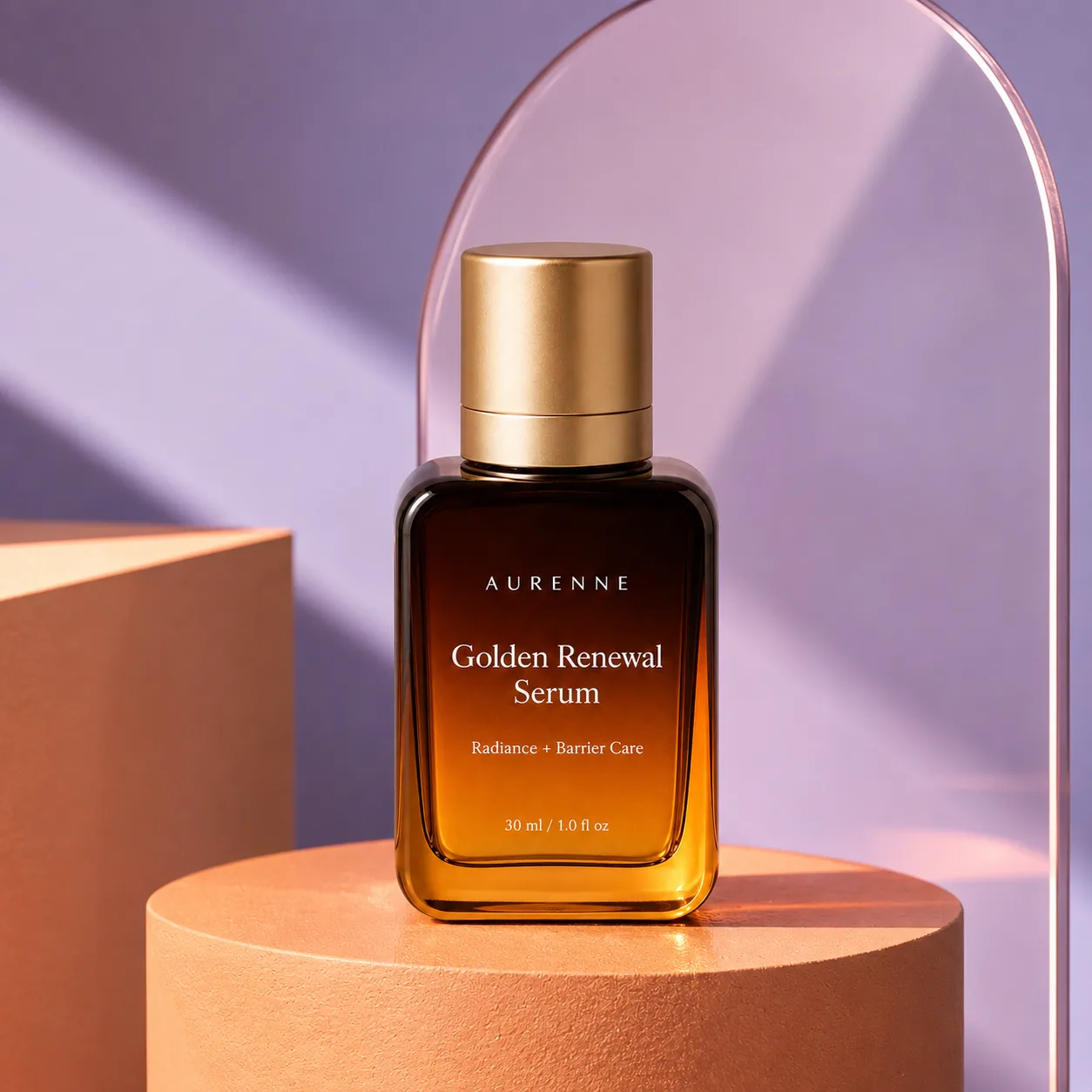
AI Product Photoshoot
Create studio or lifestyle product scenes from a product photo.
Best for
Product listings and ads
- Create product scenes
- Review product details
- Download the result
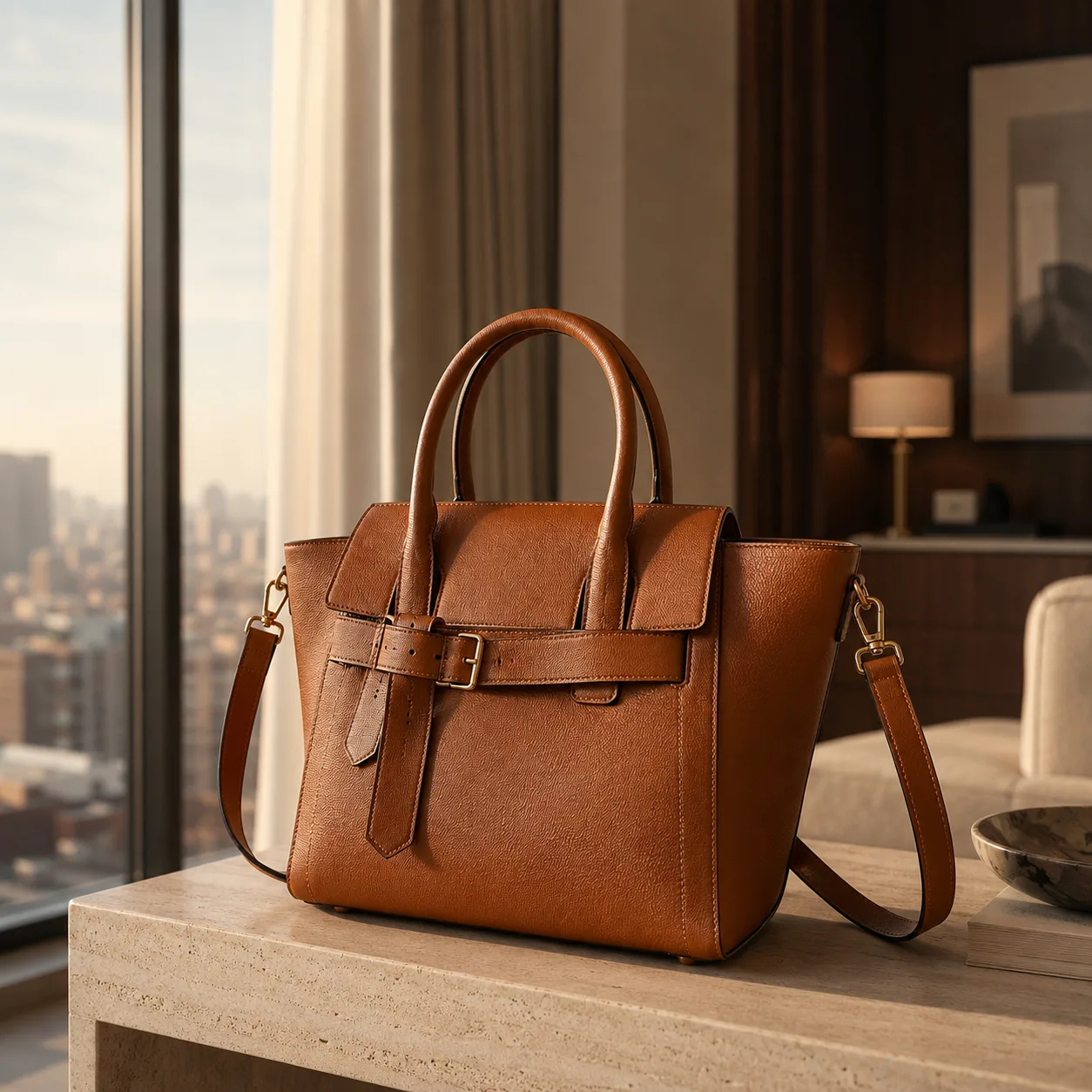
Image to Image AI Generator
Upload a photo and ask Nano2Image to make a new version of it, such as a different style, scene, or composition.
Best for
Portrait edits, product variations, room restyles, reference images
- Edit one uploaded image
- Use reference images
- Control what changes
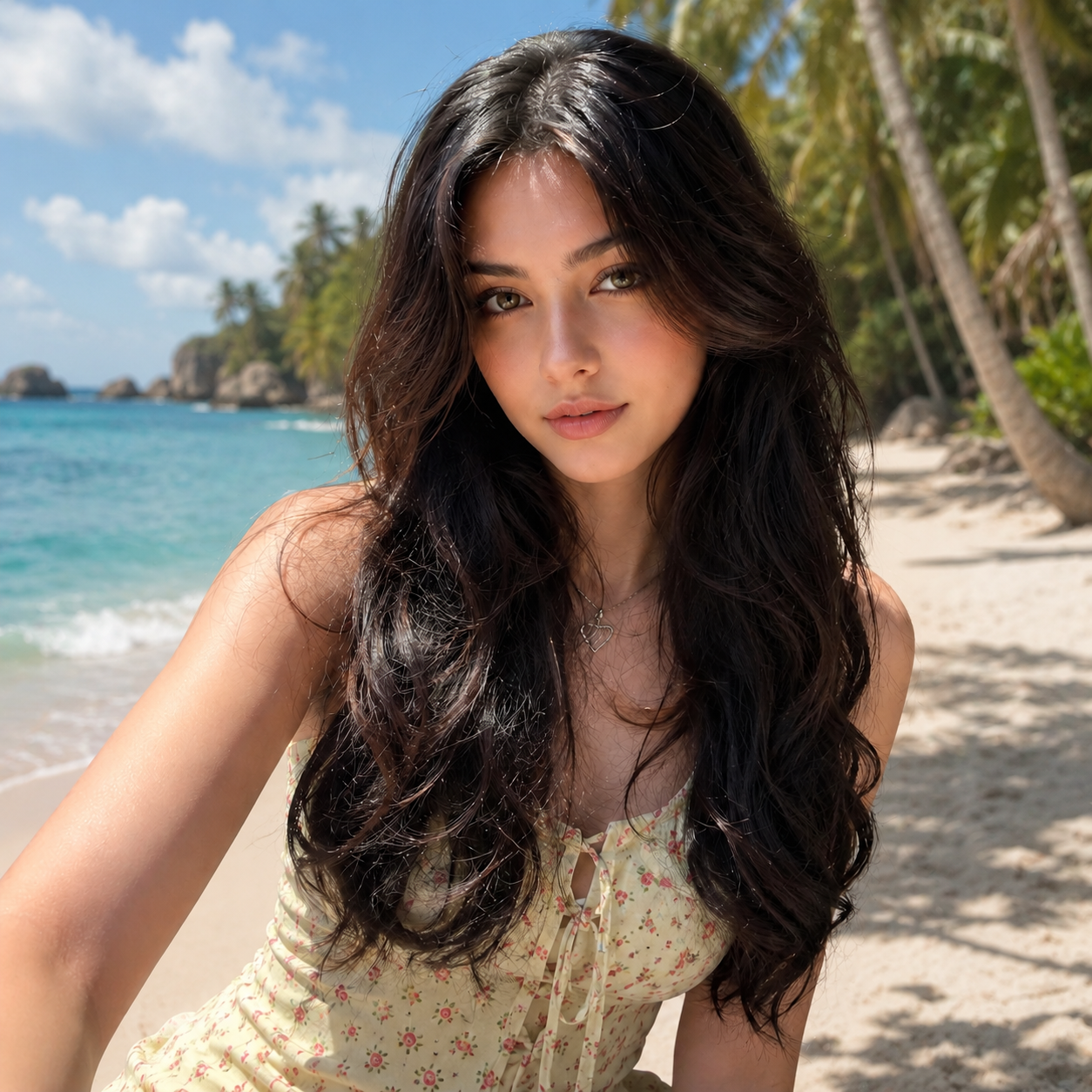
AI Background Changer
Replace a photo background with a new color, scene, or uploaded background while keeping the main subject in place.
Best for
Product photos, profile photos, ads, social posts
- Describe a new background
- Use a solid color
- Upload a background image
Transparent Background Maker
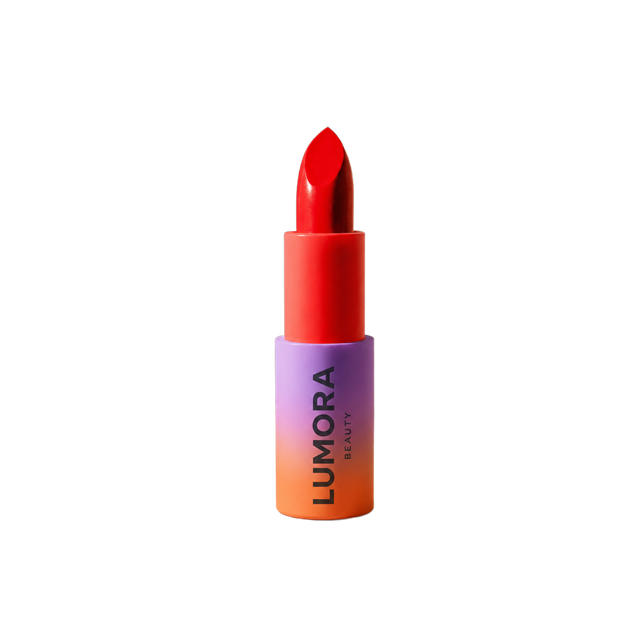
Remove the background from products, portraits, logos, stickers, and graphics, then download a transparent PNG.
Best for
Product photos, profile images, logos, stickers
- Transparent PNG downloads
- Product and portrait cutouts
- Logo and sticker images
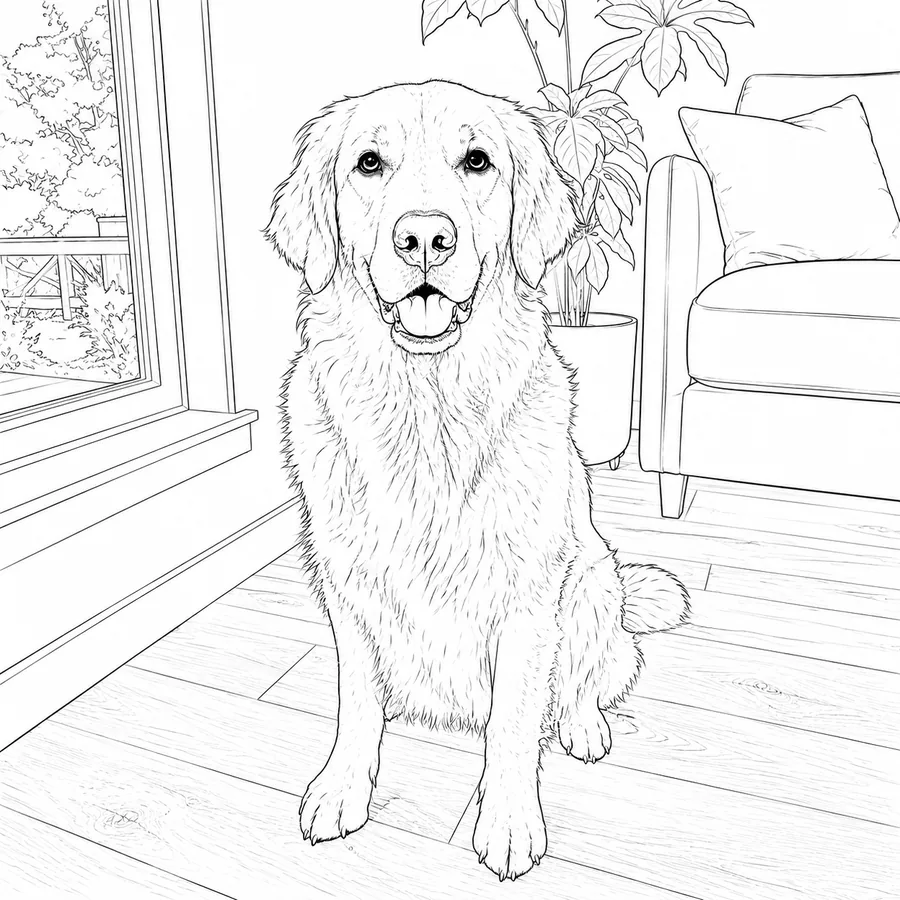
Convert Photo to Line Drawing
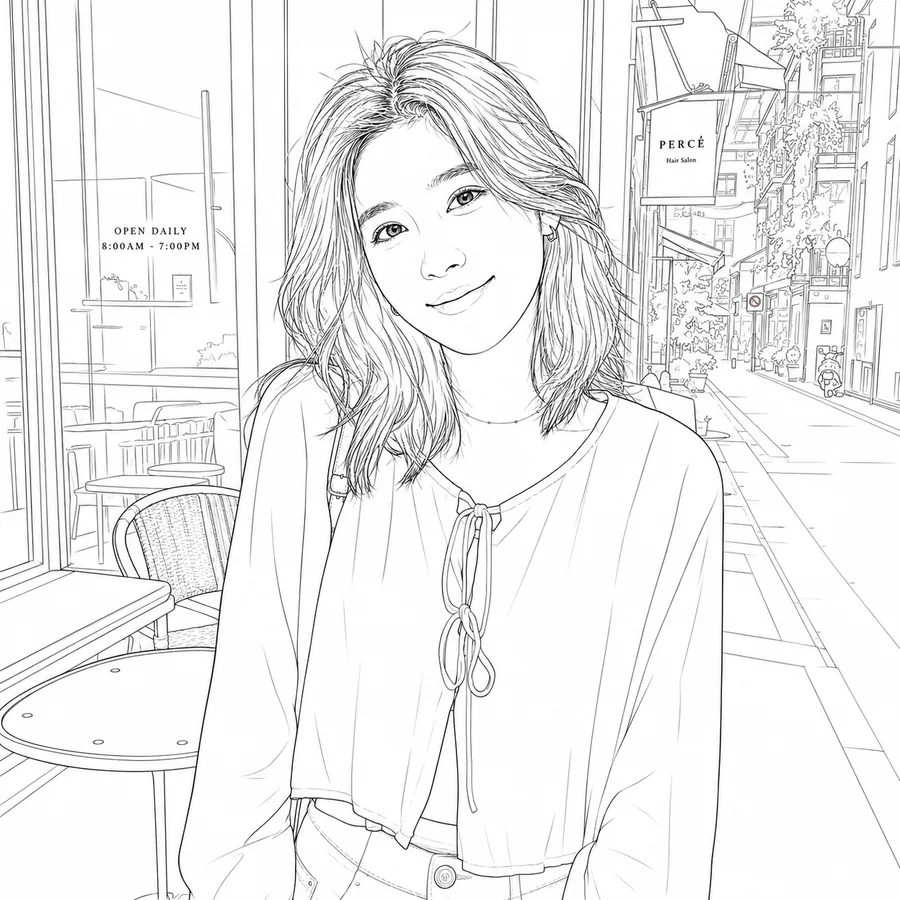
Turn photos into clean line drawings, cartoon outlines, cute rounded drawings, or sketch-style images.
Best for
Portrait sketches, pet drawings, product outlines, coloring pages
- Clean line art
- Cartoon and cute rounded styles
- Sketch-style images
What you can expect while editing
These features explain the basic editing experience in Nano2Image: where your image starts, how credits work, and how you can come back to past results.
Start from your own image
Use a real photo or design as the starting point, then describe the change you want.
Credits shown before you edit
Nano2Image shows the credit cost before you run an edit, so you know what each generation uses.
Find past edits again
When you are signed in, previous results stay in your history so you can return to them later.
Useful for real image work
Create product photos, profile images, thumbnails, and social visuals, using images you have the right to edit.
Edit in the browser
Upload, describe the change, review the result, and download without opening a heavy design app.
Examples for common edits
Tool pages show real examples, so you can start from a similar edit instead of guessing what to write.
Where should you start?
The best place to start depends on what you want to do with the image.
Open the main editor
Use the main editor when you want a custom change or need to try several edits on the same image.
Open editorPick a tool for a clear job
Use a tool page when you already know the task: change a background, make a transparent PNG, convert a photo to line art, or make a new version of an image.
Browse toolsStart from an example
Use examples when you want to see what a prompt can do before editing your own product photo, portrait, room, or fashion image.
View examplesNano2Image Features FAQ
Is Nano2Image only an AI image generator?
Should I start from the editor or a tool?
Do the tools use the same account and credits?
Can I keep editing after using a tool?
Why do tool pages have their own FAQs?
Can I use Nano2Image outputs for commercial projects?
Start with the Image You Want to Edit
Upload a photo, describe the change, and choose the editor or tool that fits the job.
Open Nano2Image editor