Photo to Line Drawing Converter
Upload a photo, choose Clean, Cartoon, Cute rounded, or Sketch, then generate and download a black-and-white line drawing. No Photoshop, Canva, Procreate, or hand tracing needed.
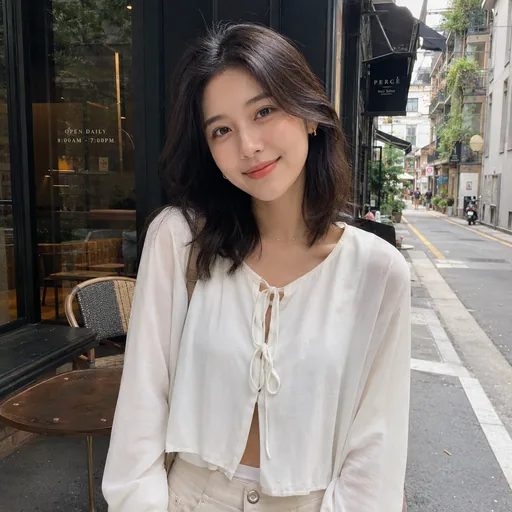
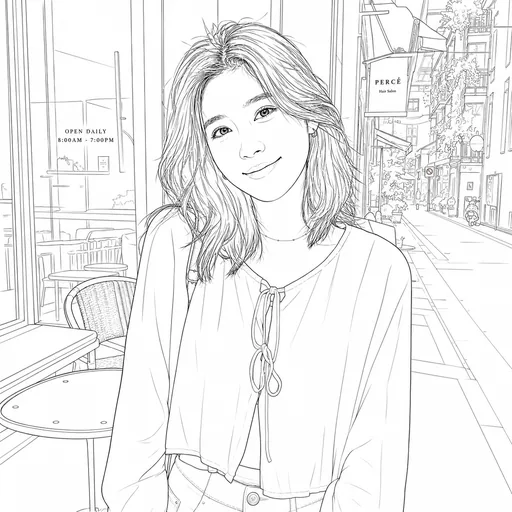
Photo to line drawing examples for portraits, pets, architecture, and products
See how clean line drawing works on different image types. Use these examples as a guide when you upload a portrait, pet photo, building, or product image.
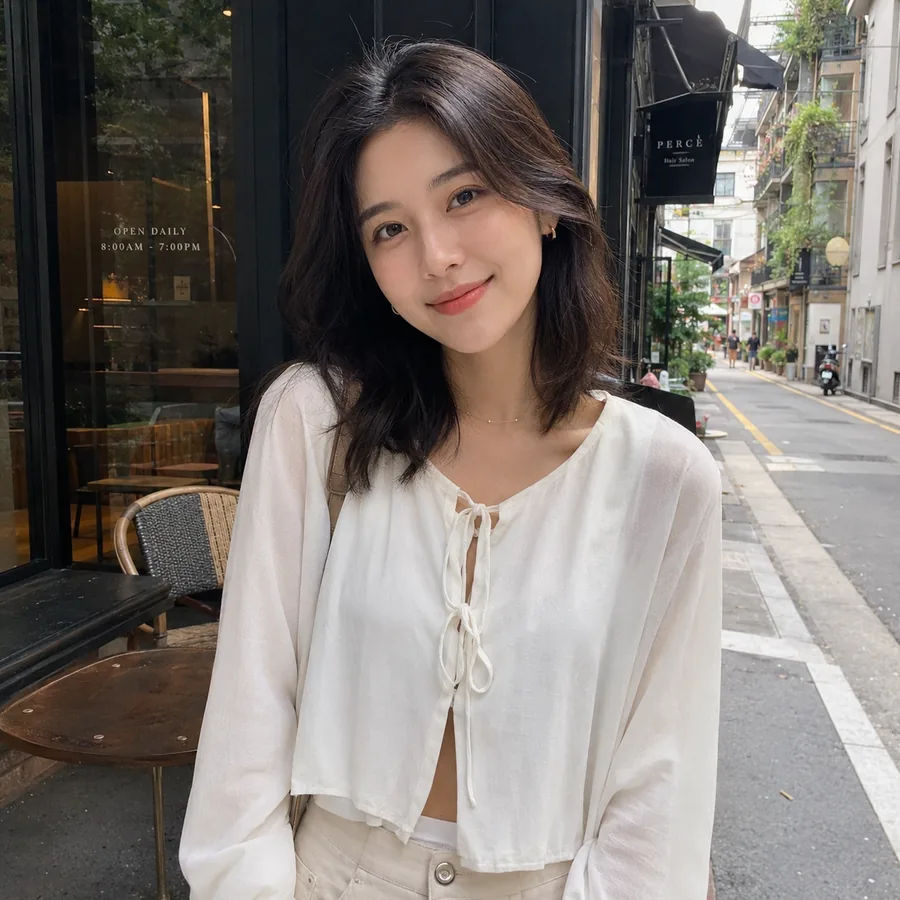
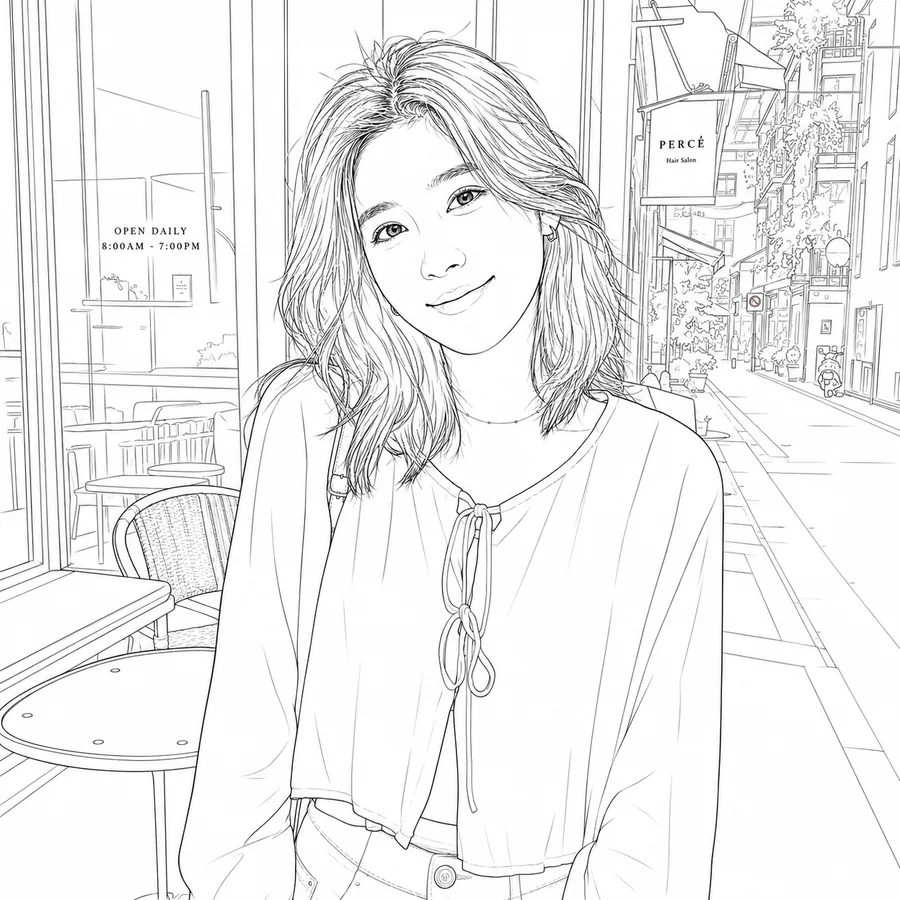
Portrait photo to clean line drawing
Turn a portrait into a clean black-and-white line drawing while keeping the face, hair shape, pose, and clothing easy to recognize.
Profile photos, creator portraits, personal art, simple avatar references
Clean
Face structure, hair outline, clothing shape, pose, and the main portrait composition
- Recognizable face
- Clear hair outline
- Simple white background
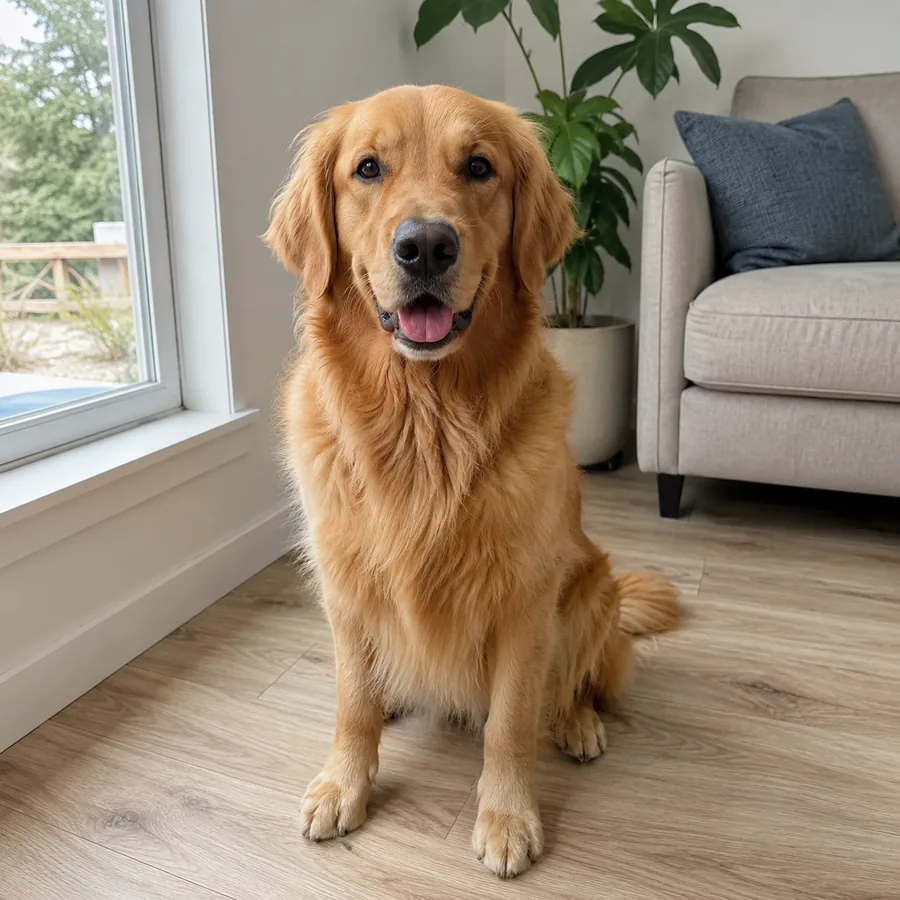
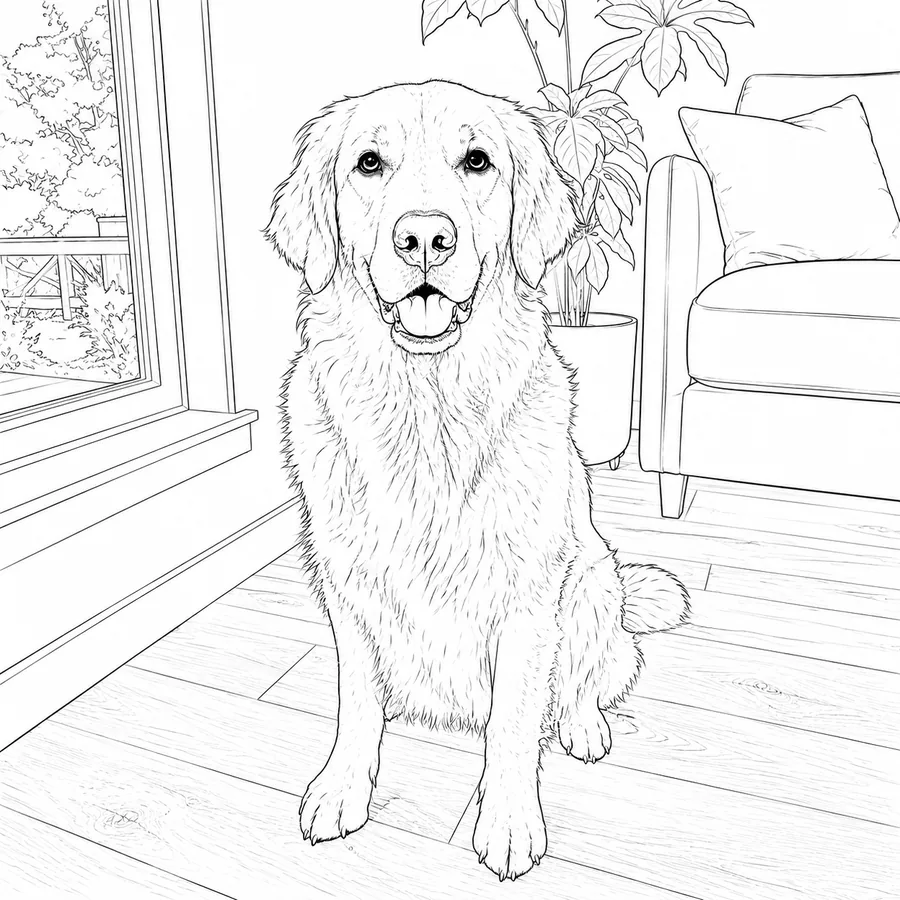
Pet photo to clean line art
Convert a pet photo into clean line art with readable ears, eyes, fur outline, and body shape without turning the result into a messy edge filter.
Pet portraits, coloring sheets, keepsake drawings, animal reference images
Clean
Pet expression, head shape, ears, eyes, fur direction, and body silhouette
- Readable animal features
- Soft simplified fur lines
- Coloring-page friendly outline
Architecture photo to clean drawing
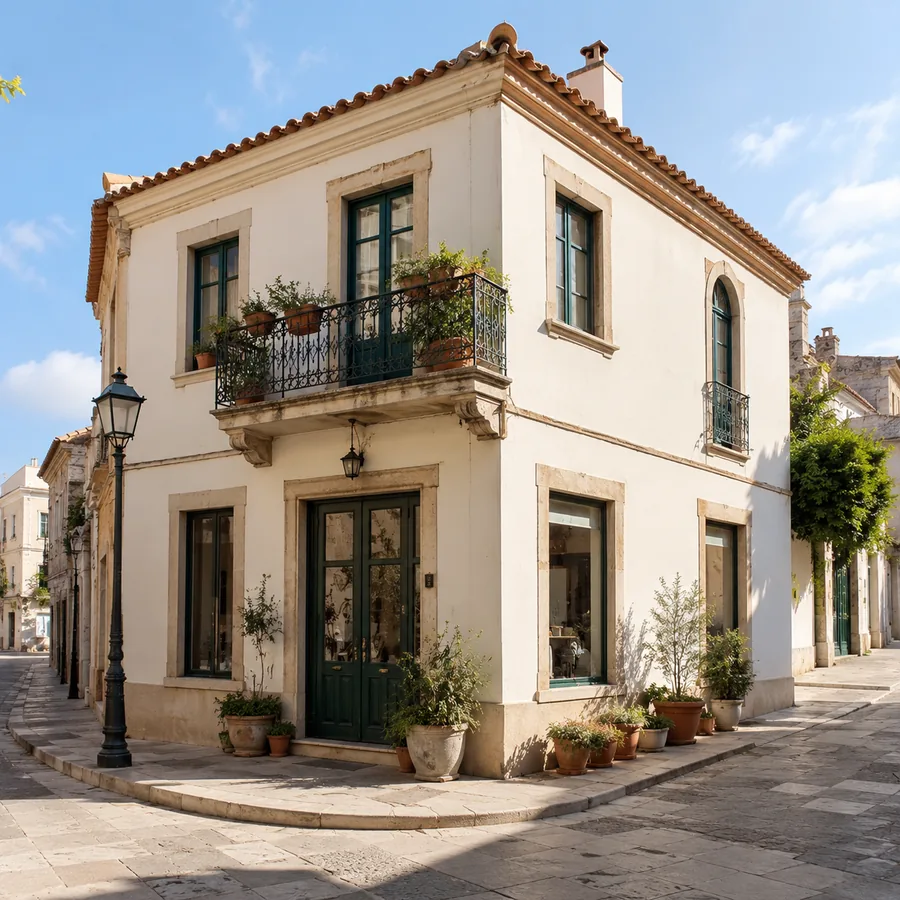
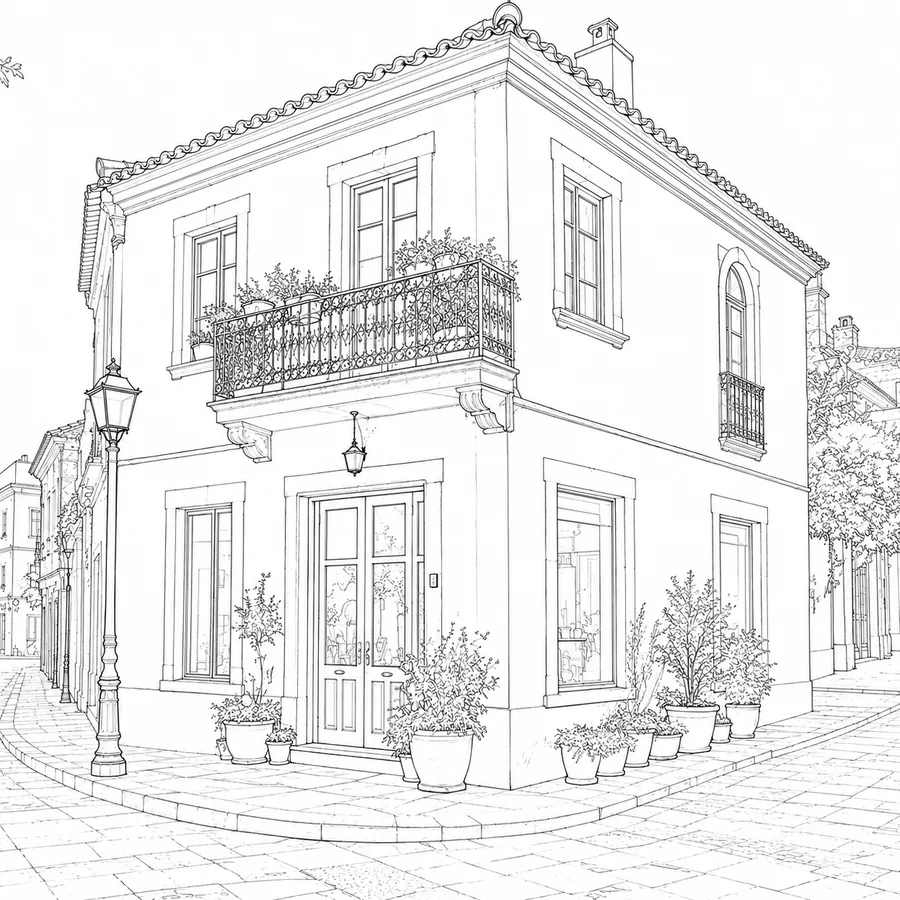
Make buildings, interiors, and street scenes easier to read as line drawings by preserving structure, perspective, and the main edges.
Architecture references, room sketches, travel photos, planning boards
Clean
Perspective, rooflines, windows, doors, main walls, and the overall scene layout
- Straight structural lines
- Simplified surface detail
- Clear spatial layout
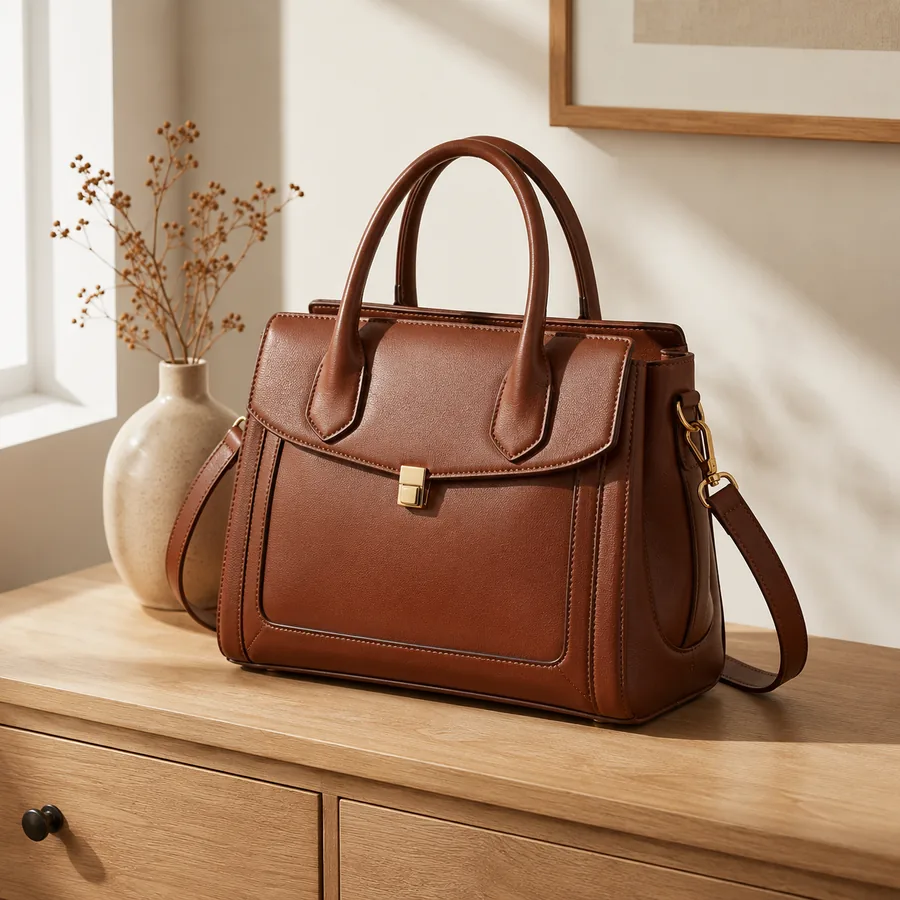
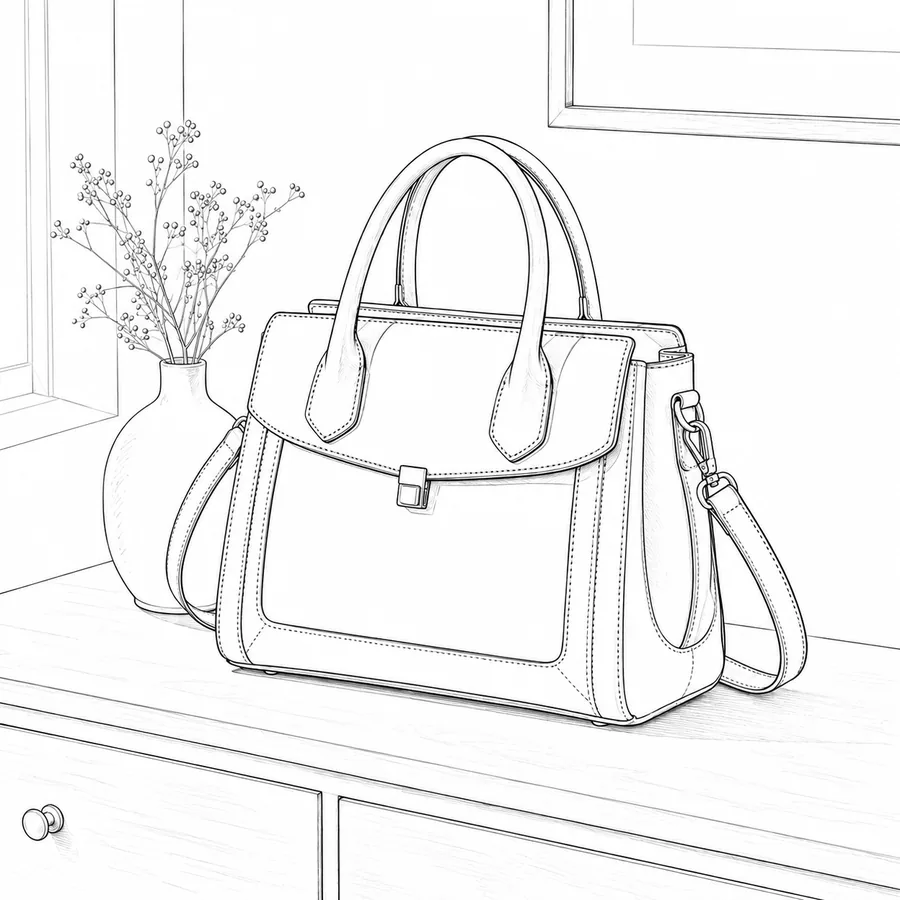
Product photo to clean outline
Create a clean product outline for design drafts, packaging notes, manuals, marketplace visuals, or quick product concept reviews.
Product outlines, catalog drafts, instruction visuals, packaging mockups
Clean
Product silhouette, key edges, label shape, object proportions, and important surface details
- Clear product shape
- Reduced background noise
- Reusable drawing-style asset
Which line drawing style should you choose?
When you convert a photo to line drawing, the best style depends on the photo and what you want to use it for. Start with Clean, then switch to Cartoon, Cute rounded, or Sketch when the result needs a different feel.
Clean
Choose Clean when you want a sharp black-and-white line drawing that still looks like the original photo.
Portraits, pets, architecture, products
You want the safest first result for a photo to line drawing online conversion.
Cartoon
Choose Cartoon when you want smoother, bolder lines and a more playful drawing from your photo.
Pets, simple portraits, objects
You want to convert photo to cartoon line drawing without losing the main subject.
Cute rounded
Choose Cute rounded when you want soft outlines, fewer tiny details, and a friendlier look.
Pet photos, stickers, casual portraits
You want an easy-to-read cute outline that feels lighter than a normal sketch.
Sketch
Choose Sketch when you want a pencil sketch feel with softer lines and a hand-drawn finish.
Portraits, lifestyle photos, art references
You want to turn a photo into a line drawing with a more natural sketch look.
How to convert photo to line drawing online
The workflow is simple: upload your image, choose a style, then generate the line drawing. You can use this photo to line drawing online workflow for portraits, pets, products, buildings, and simple objects.
Upload your photo
Start with a clear portrait, pet, building, product, or object. Good lighting and visible edges help create a cleaner line drawing from photo.
Choose a drawing style
Pick Clean, Cartoon, Cute rounded, or Sketch. Use Clean first if you are not sure which style fits your image.
Generate your drawing
Create the result, compare it with the original, then download it or try another style if you want a different line art look.
What can you use your line drawing for?
Most people are not trying to make art from scratch. They want a clean drawing they can use as a portrait sketch, product outline, coloring page, worksheet, or quick design reference.
Profile and portrait drawings
Turn a selfie, headshot, or creator photo into clean portrait line art without tracing it by hand.
Use it for
Product outlines
Convert a product photo to line art when you need a clear outline for listings, manuals, packaging notes, or design drafts.
Use it for
Coloring pages and worksheets
Make a simple line drawing from photo references for coloring pages, classroom sheets, craft ideas, stickers, or personal projects.
Use it for
Creative sketches
Turn a photo to sketch when you want a softer hand-drawn version of a pet, object, travel photo, or art reference.
Use it for
Tips for cleaner line drawing results
Cleaner results usually come from two choices: upload a photo with a clear subject, then pick the drawing style that fits what you want to make.
Before upload
A cleaner source photo usually gives you a cleaner line drawing from your photo.
Use one clear subject
Choose a photo with one main person, pet, product, building, or object.
Keep edges easy to see
Good lighting and sharp focus make the final outline easier to read.
Avoid busy backgrounds
Crowded scenes can add extra lines around the subject.
Choose a style
If you are wondering how to make a line drawing from a photo, start with the style that matches your goal.
Start with Clean
Clean is the safest style when you want the result to stay close to the original photo.
Use Cute rounded for softer outlines
Better for pets, crafts, stickers, and coloring-sheet ideas.
Use Sketch for a hand-drawn look
Better for portraits, travel photos, and loose reference drawings.
Related image editing resources
Continue from photo to line drawing into transparent backgrounds, background changes, image-to-image workflows, and the broader AI image editor.
Transparent Background Maker
Make photo backgrounds transparent for products, portraits, logos, and graphics.
ViewAI Background Changer
Change a photo background with AI while keeping the subject stable.
ViewImage to Image AI Generator
Upload an existing image and edit it with a prompt to change backgrounds, restyle, or create variations.
ViewAI Image Editor
Explore Nano2Image's broader editor for prompt-based generation and image editing.
ViewPhoto to Line Drawing FAQ
How do I turn a photo into a line drawing online?
What photos work best for a photo to line drawing converter?
Is Nano2Image a free photo to line drawing tool?
Do I need a photo to line drawing app, Photoshop, Canva, or Procreate?
Can I convert a photo to a pencil sketch?
Can I make a black-and-white, cartoon, or minimal line drawing?
Can I use the result as a coloring page or worksheet?
Can I edit each line separately or download vector line art?
Convert Your Photo to a Line Drawing
Upload a portrait, pet, product, or building photo, choose Clean, Cartoon, Cute rounded, or Sketch, and create a clear line drawing in your browser.
Open line drawing editor