Workflow Access
Open the Nano2Image editor when you are ready to generate
This guide explains the workflow first. Generation happens inside Nano2Image so usage, moderation, and credits stay consistent.
Powered by Nano Banana. Nano2Image is an independent product and is not affiliated with or endorsed by the model provider.
Use the newer AI image editing tools
This legacy guide is being consolidated into focused tool pages for image-to-image edits, background changes, transparent PNGs, and photo enhancement.
Image to Image AI Generator
Use the current image as a reference and describe the edit you want.
Open toolAI Background Changer
Change a product, portrait, or brand background with a prompt.
Open toolTransparent Background Maker
Create clean PNG cutouts for products, portraits, logos, and graphics.
Open toolAI Photo Enhancer
Sharpen and enhance photos for listings, profiles, publishing, and print.
Open toolTypes of edits you can make
Background Changes
Replace, remove, or modify backgrounds while keeping your subject intact. Perfect for product photos, headshots, and marketing materials.
Example: "Replace the background with a modern office, keep the person unchanged"
Object Removal
Remove unwanted objects, people, or distractions from photos. The AI fills the area naturally with matching textures and patterns.
Example: "Remove the car from the background, fill naturally"
Lighting Adjustments
Transform harsh shadows into soft studio lighting, add golden hour warmth, or create dramatic rim lighting effects.
Example: "Change to soft studio lighting with subtle shadows, natural colors"
Style Transformation
Apply artistic styles, convert to different visual aesthetics, or give photos a completely new look while preserving the subject.
Example: "Apply a vintage film look with warm tones, keep subject unchanged"
Enhancement & Restoration
Improve image quality, fix exposure issues, reduce noise, or restore old photos to look fresh and vibrant.
Example: "Enhance image quality, improve sharpness, natural colors, no over-processing"
Background Replacement Example
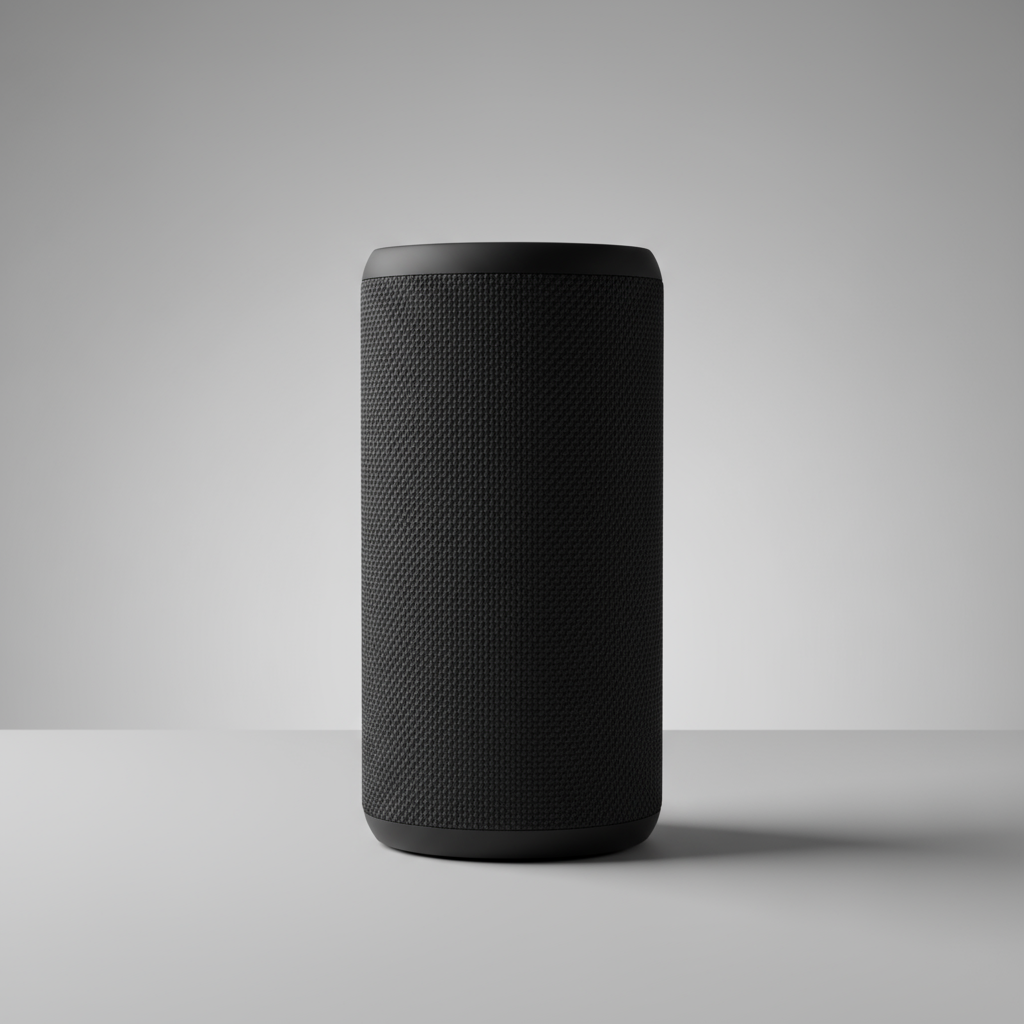
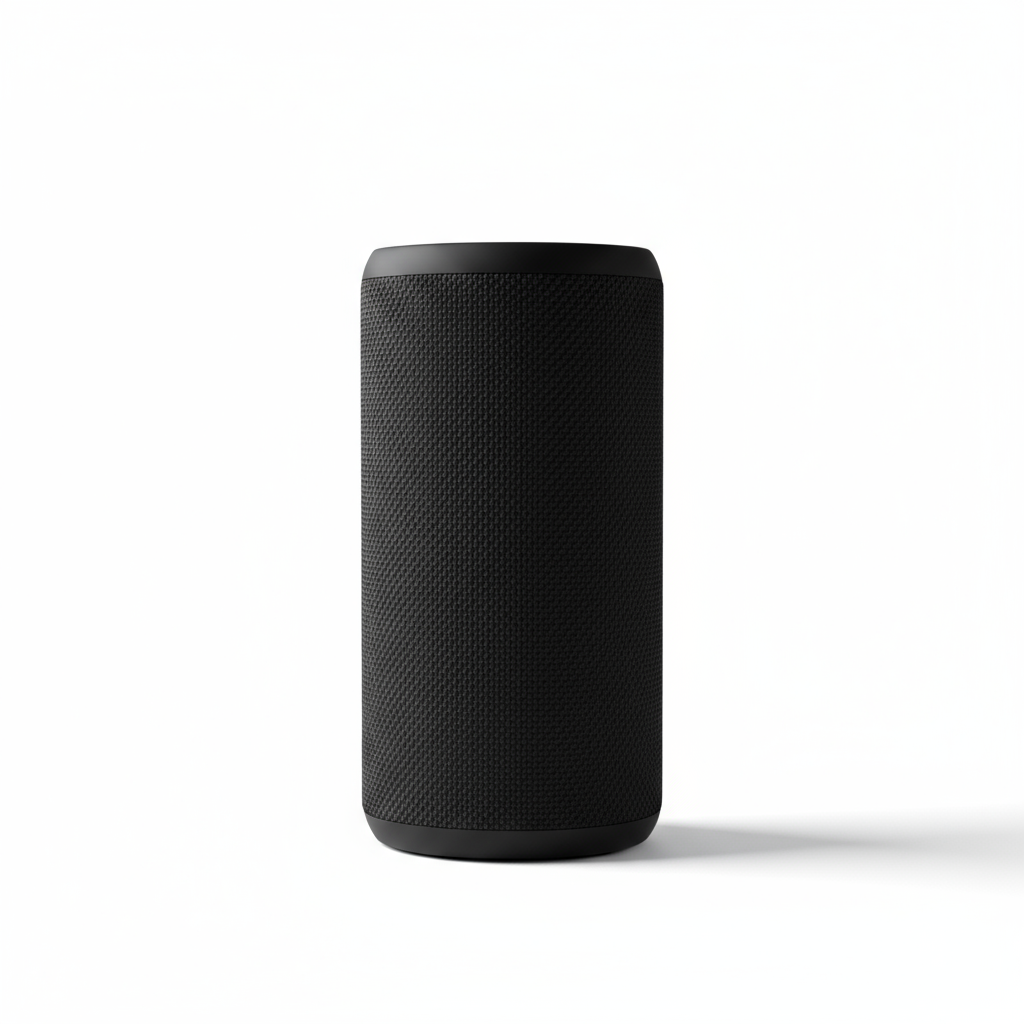
Prompt used: "Replace the background with pure white (#FFFFFF). Keep the subject unchanged. Add a soft studio shadow."
A reliable editing workflow
Upload a clean source image
Start with good lighting and a clear subject.
State the edit goal in one sentence
Examples:
- "Replace the background with pure white."
- "Remove the object on the left."
- "Make the lighting soft studio lighting."
Add constraints (prevents unwanted changes)
Use constraints like:
- "Keep the main subject unchanged."
- "No face changes."
- "Match lighting and perspective."
- "Natural texture."
Iterate in small steps
Don't request five changes at once. Edit in steps:
background → lighting → color tone → minor cleanup
Prompt Recipes
24 ready-to-use prompts. Copy, customize the [brackets], and generate.
White background (e-commerce)
Replace the background with pure white (#FFFFFF). Keep the subject unchanged. Add a soft studio shadow. Clean e-commerce look, no text, no watermark.Transparent background
Remove the background completely. Keep the subject with clean edges, no halos. Output with transparent background. Preserve fine details like hair strands.Gradient studio background
Replace background with a smooth gradient from light gray to white. Keep subject unchanged. Soft studio lighting, professional look, no text.Lifestyle background swap
Replace background with [modern office / cozy cafe / sunny park]. Keep subject exactly the same. Match lighting direction and color temperature. Natural depth of field.Outdoor scene background
Replace background with an outdoor nature scene. Keep subject unchanged. Match sunlight direction, add natural shadows. No artifacts around edges.Professional studio backdrop
Replace background with a professional photography studio backdrop (neutral gray). Keep subject unchanged. Even studio lighting, subtle shadows, clean edges.Common failures (and fixes)
Frequently Asked Questions
Quick answers to common questions about Nano Banana image editing
Nano Banana image editing lets you upload a photo and describe changes in plain English. Instead of manually selecting areas and adjusting sliders, you simply tell the AI what you want: 'replace background with white', 'remove the person on the left', or 'improve the lighting'. The AI interprets your request and applies the changes automatically.
Add explicit constraints to your prompt. Include phrases like 'keep subject unchanged', 'no face changes', 'preserve identity', and 'maintain original pose'. The more specific you are about what should stay the same, the better the AI respects those boundaries. For portraits, also add 'natural skin texture' to prevent over-smoothing.
Background replacement, object removal, lighting adjustments, and style changes work excellently. More challenging edits include precise object placement, complex multi-person scenes, and very specific spatial arrangements. Start with simpler edits to understand how the AI interprets your instructions.
Most edits complete in 2-5 seconds. Complex edits or higher resolution images may take slightly longer. The processing time is consistent regardless of the type of edit you're requesting—background changes take the same time as lighting adjustments.
You can upload JPG, PNG, and WebP images up to 10MB. For best results, use images at least 512x512 pixels. Higher resolution images (1024x1024 or above) produce better detail in the output. Generated images are delivered in high-quality PNG format.
This usually happens when lighting or perspective doesn't match. Add constraints like 'match original lighting direction', 'consistent shadows', and 'natural depth of field'. If the background looks pasted, try 'seamless blend' and 'match perspective'. For skin, avoid terms like 'perfect' or 'flawless' which trigger over-processing.
You can, but results are better when you edit in steps. Complex prompts with multiple changes often produce inconsistent results. Instead, do background first, then lighting, then color adjustments. Each iteration gives you a checkpoint and more control over the final result.
AI editing uses natural language instead of manual tools. You don't need to learn layer masks, selection tools, or color curves. Just describe what you want. The tradeoff is less pixel-level precision—AI editing excels at creative changes and quick edits, while Photoshop offers more control for detailed retouching.
Yes! You get 3 free credits after signup — just open the generator and try it. Want more? Sign up (email only, no credit card) to receive 3 free credits. That's 3 free credits total to test different workflows before upgrading to a paid plan.
Yes, all images you create can be used for commercial purposes. This includes product photos, marketing materials, social media content, client work, and business profiles. You retain full usage rights to your edited outputs.
Check out our prompt library which includes ready-to-use templates for common edits: background replacement, lighting improvement, object removal, and style changes. Each template includes the recommended constraints to get consistent results.
API access is not offered at this time. Nano Banana is available through the web interface only. This keeps the service simple and accessible. We may consider API access in the future based on user demand.