AI Photo Enhancer
If your photo looks soft or compressed, try improving its clarity and check the details against the original.
Enhance a PhotoColorize a black and white photo online with AI. Add natural-looking color to old portraits and family photos—no prompt or manual painting needed.
Explore colorization examples for portraits, family photos, and street scenes.
Add color to a black-and-white portrait, from skin tones and hair to clothing and the background. Compare the original and colorized versions side by side.
Colorize your portrait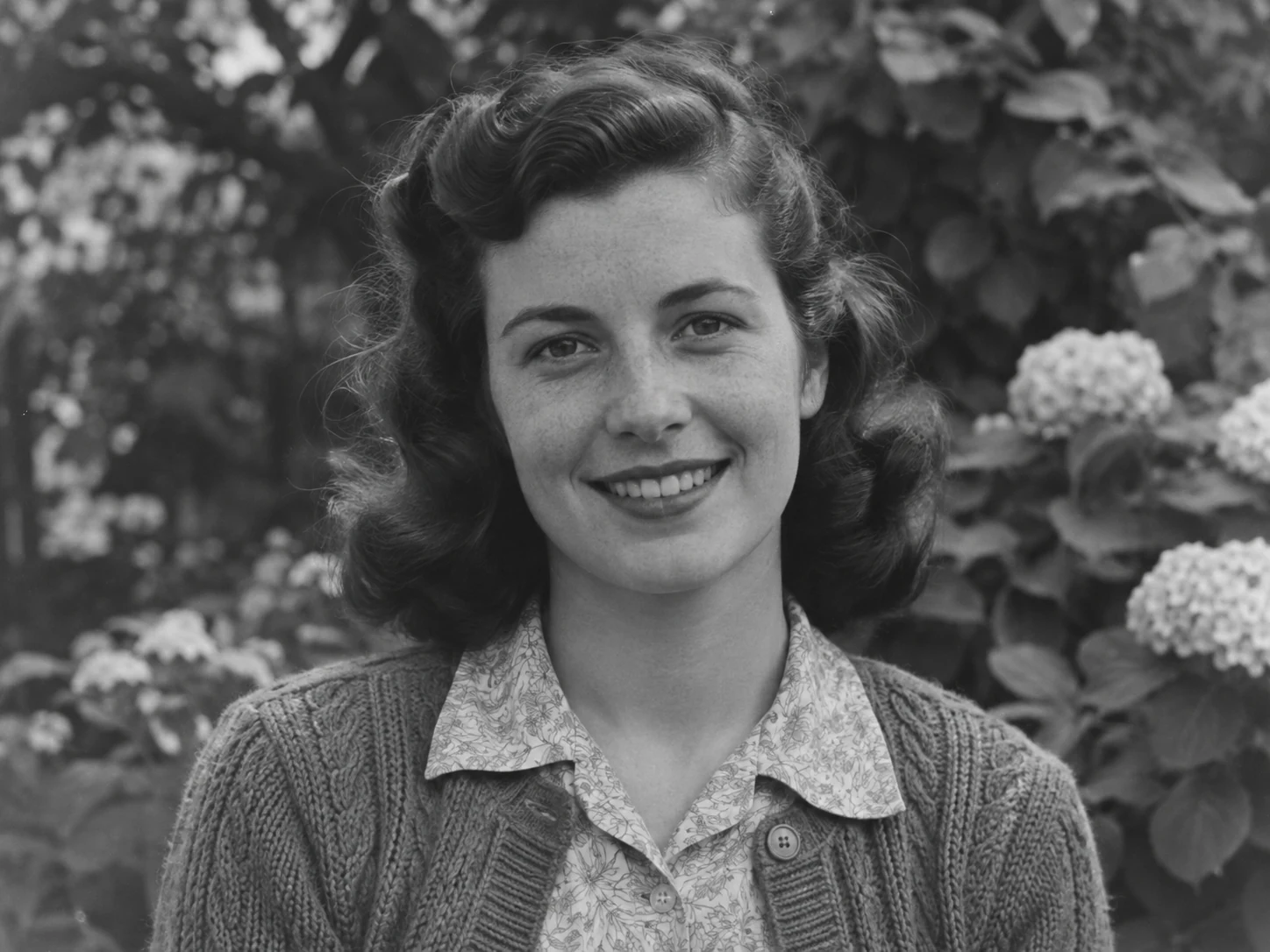
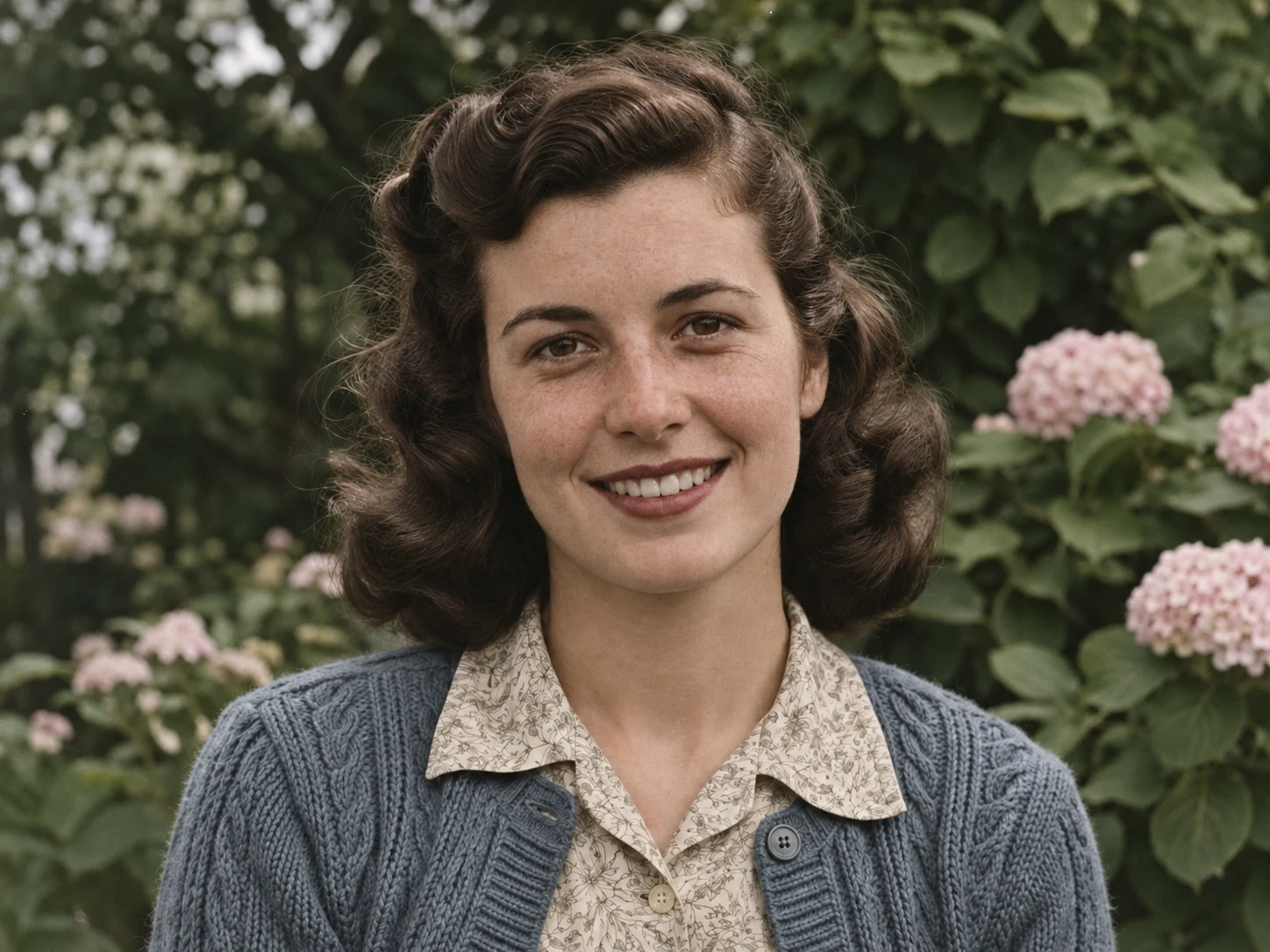
See parents, grandparents, and childhood moments in color. Create a colorized copy of an old family photo to share with relatives or add to a digital album.
Colorize your family photo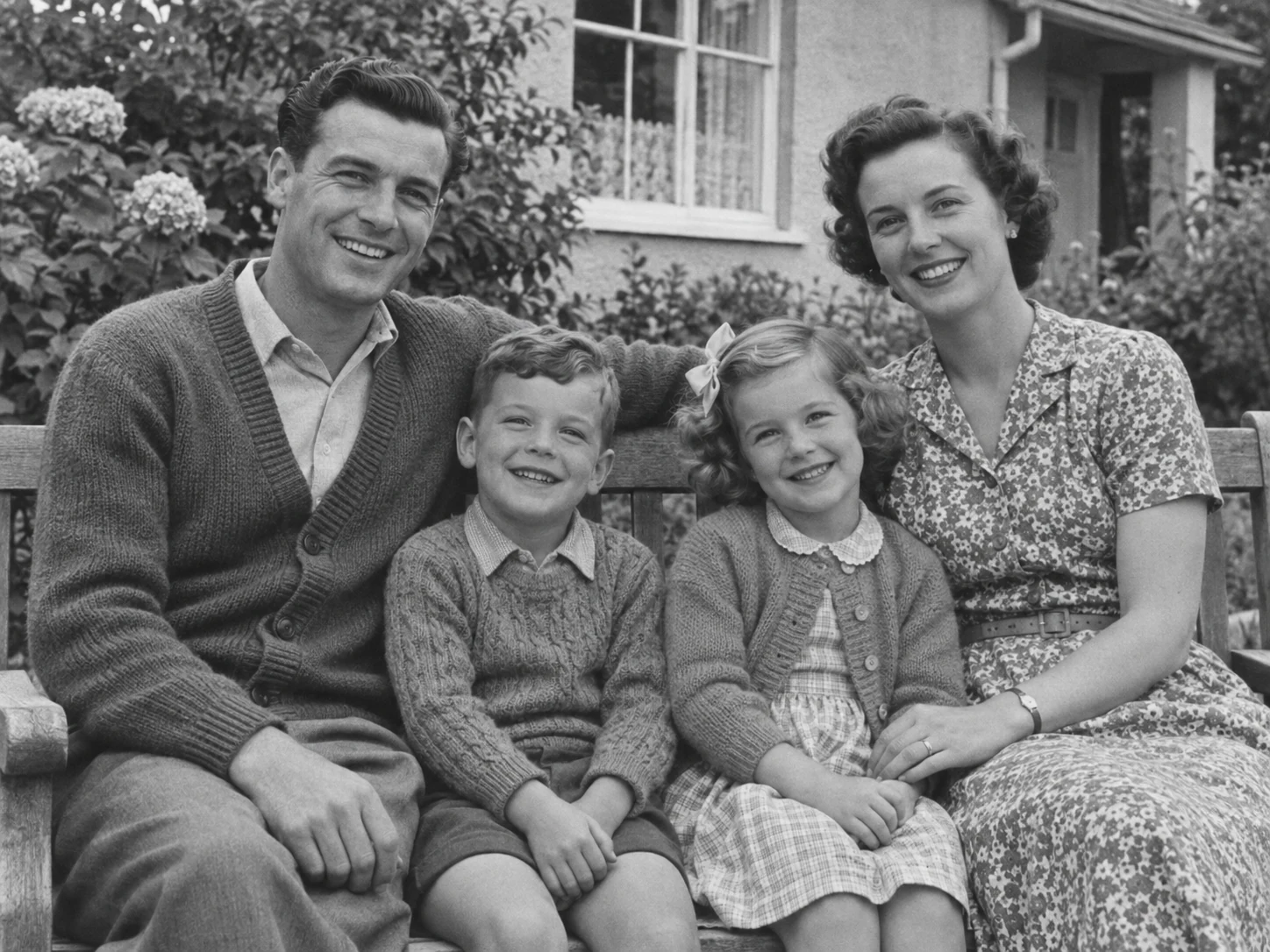
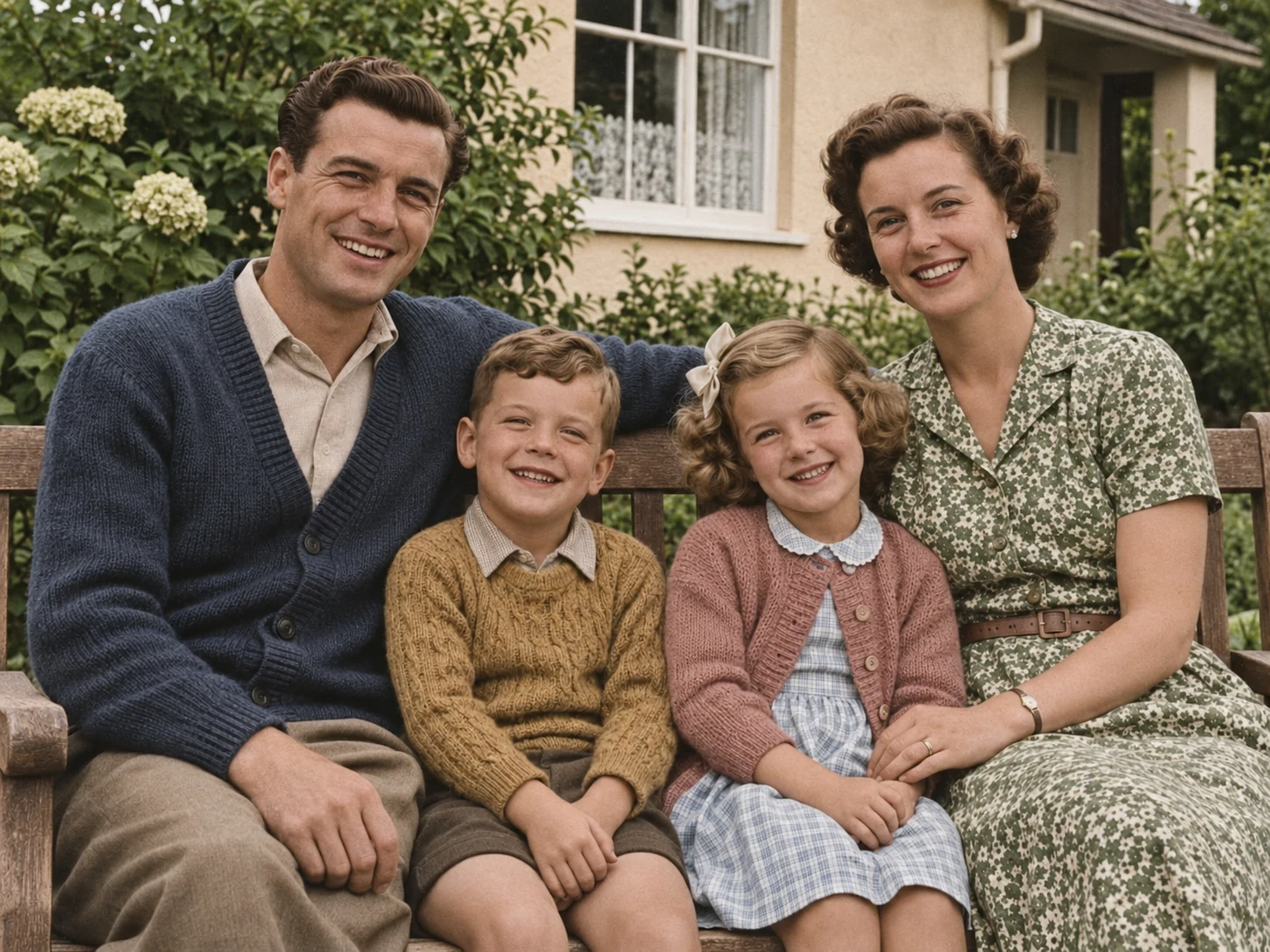
Turn black-and-white photos of streets, buildings, and travel memories into color versions for personal albums and local history projects.
Colorize your photo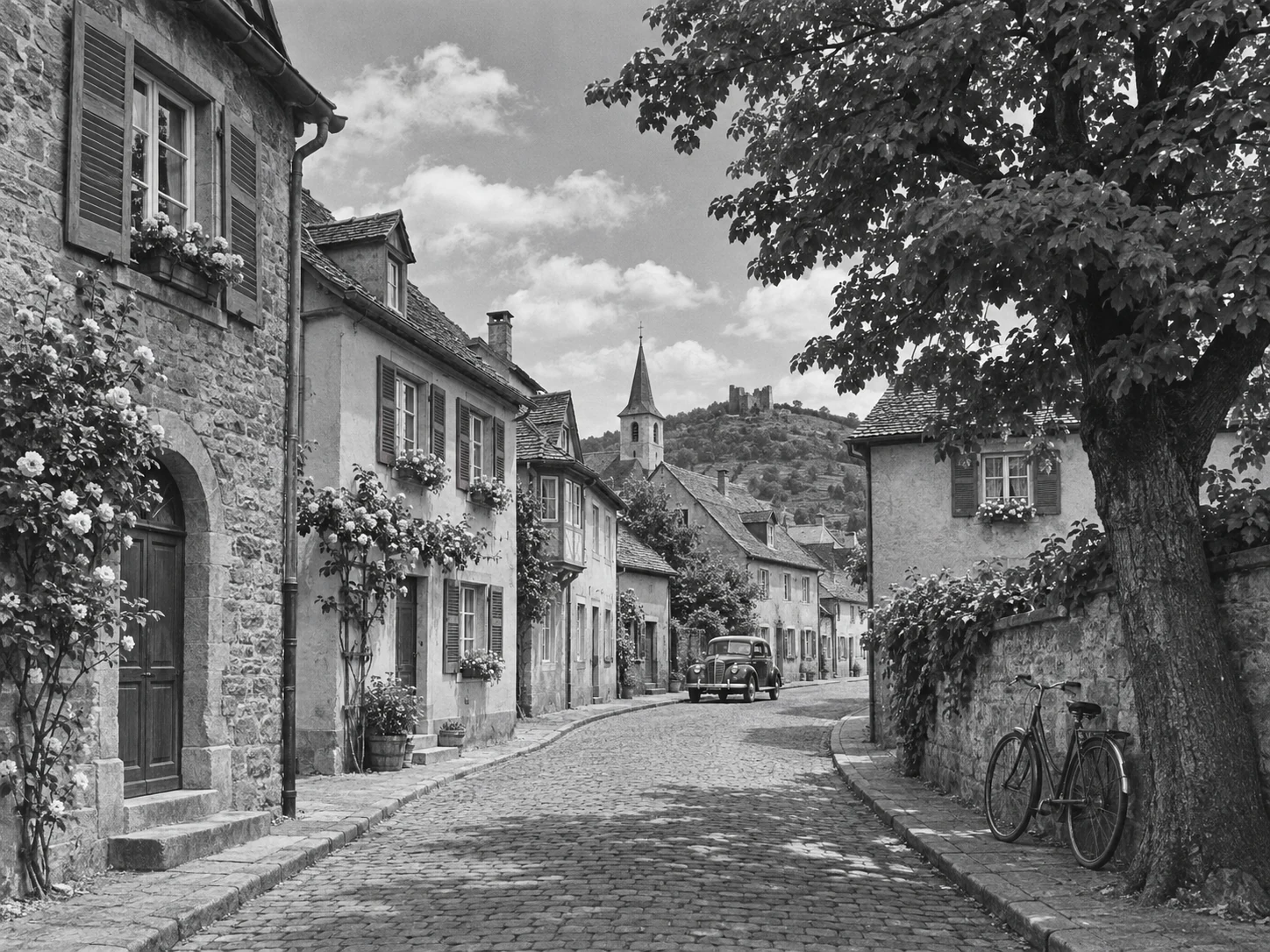
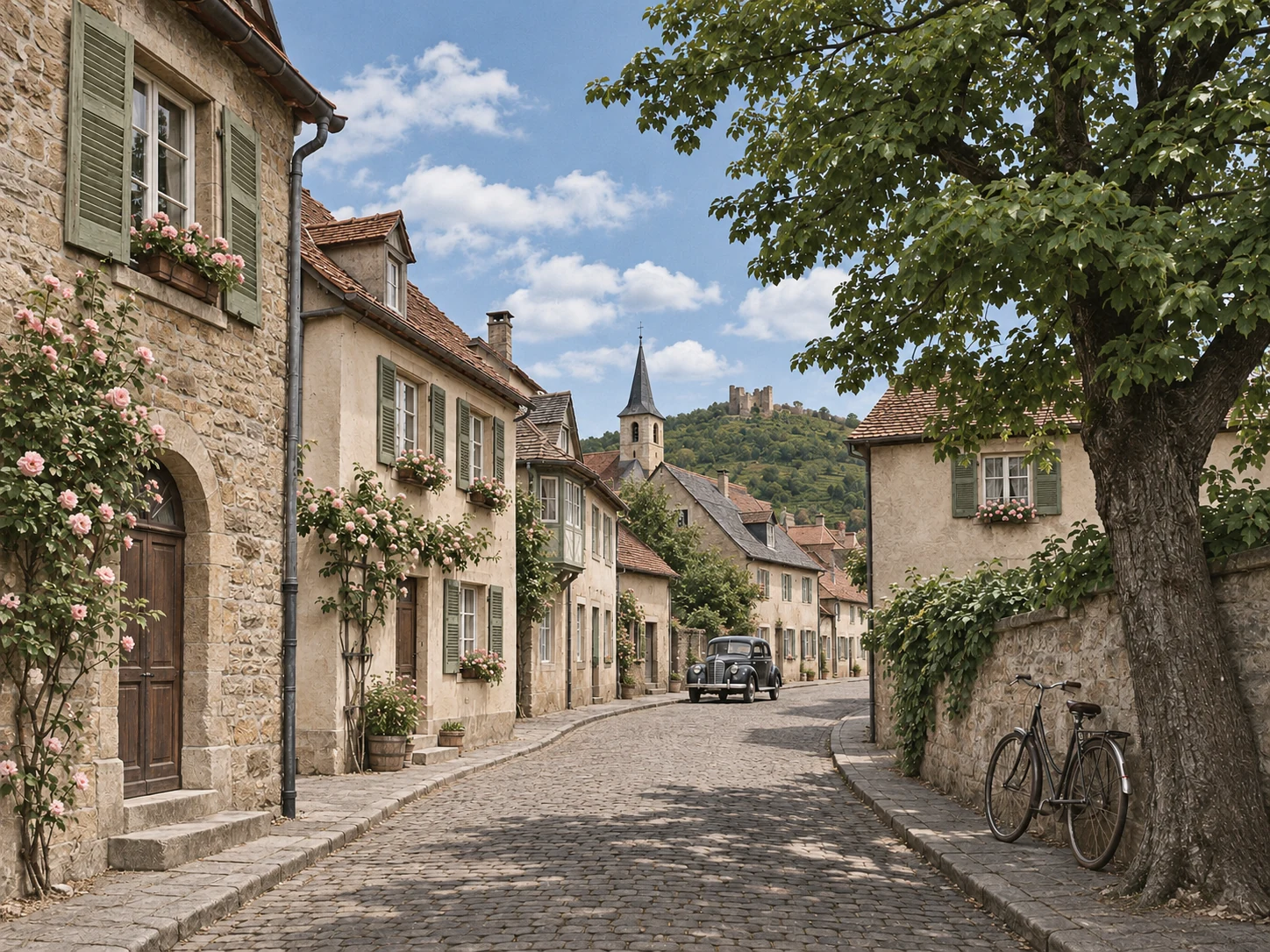
Colors are interpretations and may differ from the original scene.
Upload, start colorization, compare, and download—all on this page.
Choose a clear JPG, PNG, or WebP image up to 10 MB. Use a scan or a well-lit photo of your original print.
Review the required credits, then click Colorize photo. There is no prompt to write or color palette to choose.
Switch between the original and colorized photo. Check faces, clothing, and background details before downloading.
Save the result you want to keep. For a batch, review each photo separately and download the completed results.
Paid access unlocks batches of up to 5 photos. Each photo uses credits separately. Keep this page open while the batch is processing.
Create colorized copies for family albums, keepsakes, and personal history projects.
Add color to photographs of parents, grandparents, and childhood moments. Keep the original and share the colorized copy with relatives.
Create colorized copies of wedding portraits, birthday photos, and other milestones for a celebration album or personal keepsake.
Add an AI-colorized version to a family tree or personal history project. Label it clearly and preserve the black-and-white source.
Use an old street, hometown, or travel photograph to explore how a place might have looked in color.
Start with a clear scan or a well-lit photo of your print for better colorization results.
Choose a source photo with visible faces and details. Blur and missing information can make the colorized result harder to evaluate.
Photograph prints in even lighting. Keep the camera parallel to the photo and crop away the surrounding surface.
Save your black-and-white image alongside the edited copy. Compare facial features, fine details, and composition after colorization.
AI cannot confirm the original colors of clothing, uniforms, or objects. Use reference photographs or records when accuracy matters.
Explore related tools for clarity, further edits, and photo projects.
If your photo looks soft or compressed, try improving its clarity and check the details against the original.
Enhance a Photo
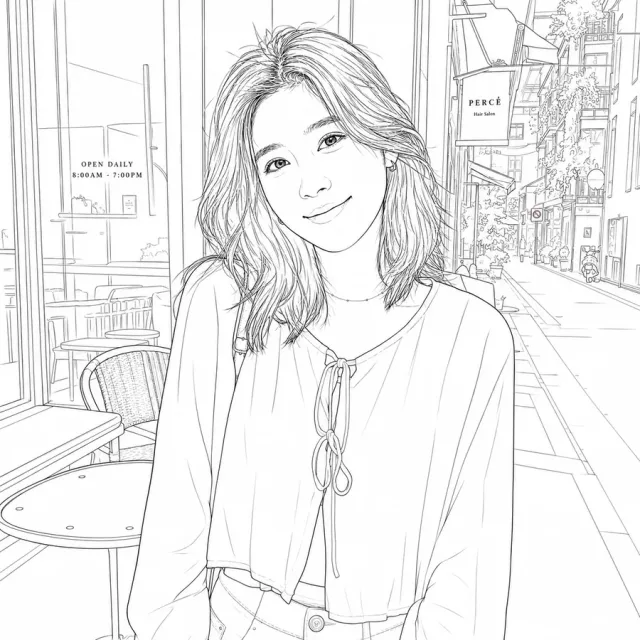
Want another version for a keepsake or creative project? Turn the portrait into a line drawing.
Create a Line DrawingUpload a photo, let AI add color, and compare the result with the original.
Upload your photo